Showing posts with label ubuntu. Show all posts

Friday, July 11, 2008

Eric.S.Raymond forsakes Fedora Linux and embraces Ubuntu

Eric.S.Raymond is best known for authoring the famous essay "The cathedral and the bazaar" where he discusses the theories of software engineering in terms of two fundamentally different development styles - the cathedral model of most of the commercial world versus the "bazaar" model of the Linux world. This essay has become so popular that it has also been published in a book format (By O'Reilly). One of the most often used quotes from his essay is - "Given enough eyeballs, all bugs are shallow". He is also a board member of Freespire.

In the past, Mr Raymond has been in the limelight for the push to allow proprietary codecs into Linux. His surmise is that the Linux community need to start integrating more proprietary software in order to get market share. ESR points to proprietary multimedia codecs as an example, where Linux distributions should step away from Free software ideology in order to get more users. He states that this will succeed in bringing those users back to open source later on which will lead to gaining more influence with manufacturers and media distributors thus helping make Linux a properly supported platform. And this idea he put forward was met with ridicule from a major section of the community.

Now again he has succeeded in grabbing the headlines by stating his intention to switch to Ubuntu from Fedora which he has been using till now. And he supports his move by listing the following reasons - and I quote :
  • Chronic governance problems.
  • Persistent failure to maintain key repositories in a sane, consistent state from which upgrades might actually be possible.
  • A murky, poorly-documented, over-complex submission process.
  • Allowing RPM development to drift and stagnate -- then adding another layer of complexity, bugs, and wretched performance with yum.
  • Effectively abandoning the struggle for desktop market share.
  • Failure to address the problem of proprietary multimedia formats with any attitude other than blank denial.
While I agree with him on his statement on the performance of Yum - I have myself found it quite slow - a reason attributed to it storing all the details in an XML file and then reading from it, I do not agree that Red Hat/ Fedora is in the wrong to flatly deny to incorporate proprietary multimedia formats in their distribution.

Alan Cox has given a reply to ESR's letter in the Fedora mailing list.

Ironically, another news that is being just aired is that Microsoft has been asked to pay 1.52 Billion dollars in a patent case against Alcatel-Lucent concerning the use of MP3 technology in WMP [Source: BBC].

So the risk factors concerning incorporating proprietary / patented formats in GNU/Linux is clear for all to see. Can Red Hat / Ubuntu or any other distribution survive if they are asked to pay such a huge sum for alleged patent infringement ? I doubt it.

On another note, considering that he is a board member at Freespire, and given his stand, shouldn't he be embracing Freespire instead of Ubuntu ?

Tuesday, June 17, 2008

derStandard.at interviews Mark Shuttleworth

DerStandard.at runs a very open interview with Mark Shuttleworth - the founder of the Ubuntu project, where he is asked his opinion on a variety of topics, the chief among them not surprisingly that about Ubuntu Linux and the path it is going to take in the future. Ubuntu is by far the most popular GNU/Linux distribution and has held the top post for well over two years now on Distrowatch's most popular Linux distribution list.

The interview touches upon a number of things such as the advantages of using Ubuntu in the enterprise over RedHat or SuSE Linux which have better tools for centralized management which Ubuntu lacks at this juncture, His thoughts on OLPC and the potential role that Ubuntu can play in it, on why Launchpad - a software developed by Ubuntu has not yet been released as open source, why he feels that compiz and beryl are not yet ready for being integrated with Ubuntu by default, his thoughts on Debian, its relevance for Ubuntu and so on.

At the least, his answers are quite interesting which makes reading the whole interview a worthwhile exercise.

Is brand name Ubuntu over hyped ?

Ubuntu is a Linux distribution which is famed for its ease of use and has built up an image of being a newbie friendly Linux distribution. Ubuntu has arguably the largest community following compared to all other Linux distributions. And it has enhanced its cause many times by following the policy of shipping free CDs of Ubuntu to anyone willing to try this Linux distribution.

Nowadays if you visit any tech blog or site, you seldom fail to notice at least one article espousing the cause of Ubuntu Linux. In fact, even the media pundits have jumped on to the bandwagon and have started tomtoming the virtues of this very popular Linux distribution (see here, here and many other places).

But recently when I reverentially downloaded the latest version of Ubuntu 7.04 (Feisty Fawn), burned it to a CD and booted into it, guess what? it failed to load.

Fig: Error encountered while booting Feisty Fawn LiveCD

The picture of my monitor above gives an idea of what I was faced with while booting Ubuntu 7.04 from the CD. It was showing an error on the lines that the ata2 port on my machine failed to respond. And I was put into an initramfs built-in shell.

The machine I tried to boot Ubuntu is a moderately recent Pentium 4 machine with 631 MB memory - more than twice the recommended minimum memory needed to load Ubuntu. The machine doesn't have any extra features like bluetooth, WiFi or out of the ordinary peripheral devices. And Debian Etch has been running quite flawlessly on this machine.

I am not an Ubuntu critic. Not even by a long short. In fact, if you search this blog, you will find numerous articles related to Ubuntu where I have talked favorably about it. I was really impressed with Ubuntu 6.06 (Dapper Drake) and its 6 step install method.

But a regular reader of this blog will find that I have been unusually quiet about the next release version which is Ubuntu Edgy Eft (6.10). It is not because I hadn't downloaded and installed it. But I did not find anything worth talking about that particular version. In all fairness to Edgy Eft, it at least booted to a complete desktop on my machine. But the latest version of Ubuntu 7.04 - Feasty Fawn, refuses to even boot and gives me the message as seen in the picture above. In all certainty it is a problem related to the Linux kernel bundled with Fiesty Fawn. Then the question arises as to why the Ubuntu team decided to use that particular version of the kernel. Perhaps that is a price you pay when you adopt experimental features without proper testing. I would really like the Ubuntu team to bring out succeeding versions at par with ver 6.06 in terms of quality.

Considering my experience with Ubuntu Fiesty Fawn against the eulogies in the media, I am forced to ask if the brand name Ubuntu is over hyped - most probably the residual effect of an over-zealous community behind it. No Linux distribution is perfect. Each has its pros and cons. I for one would like to see a balanced discussion about the pros and cons of a distribution without delving into unnecessary fanboy-ism.

Update (22 May 2007): It seems this problem is the result of a bug in Ubuntu Fiesty Fawn. Two days back, I received the CD I ordered through shipit. And even this CD refused to boot properly on my machine. A bug report has been filed at launchpad.net which you can read here. And Bheesh has provided a work around to this problem on his site, which I concede I haven't tried out yet as I do not have the patience to go through the whole ruckus just to boot into a Desktop. So as long as Ubuntu team sleeps over this undecided bug, it is sayonara from me to Ubuntu.

Performance tweaks for Ubuntu Feisty Fawn

Ubuntu is well on its way to becoming the neophytes Linux distribution going by the recent news of Dell deciding to sell their PCs pre-loaded with Ubuntu. And indeed Ubuntu is an excellent candidate for being pre-loaded on Dell PCs - what with its out of the box support for most peripheral devices.

Agreed, I have run into trouble in installing the latest version of Ubuntu (Feisty fawn) on my 2 year old Pentium IV machine with around 630 MB SDRAM as do many others. But this is something which I believe will be sorted out in later versions of Ubuntu - and I am willing to wait. In all other respects, we have a very promising distribution here which is based on the cutting edge Debian unstable.

Micke has written a good article explaining ways of speeding up your machine running Ubuntu Feisty Fawn. Apart from installing all the media codecs to make it a complete desktop, he also provides over 14 ways of fine tuning your Ubuntu so as to make it run faster.

Saturday, June 7, 2008

Ubuntu plus Dell equals better support for devices in Linux

One of the best things that has happened to Linux enthusisasts the world over is the confluence of two big players one in the Linux arena (Ubuntu aka Canonical) and the other in the PC hardware space (Dell). And the end users have already started reaping the benefits.

The benefits include device driver support for hardware components which were otherwise not compatible with Linux. A couple of years back, I had to struggle getting my internal modem based on a conexant chip to work with Linux. These internal modems are infamously known as winmodems because they delegate some of its job to the parent operating system and work flawlessly only in Windows.

Because they were not full modems, most of them are incompatible with Linux and are as good as paper weight. I have documented how I got my internal modem to work with Linux with some difficulty.

Now the good news is that Dell has released device drivers for the conexant internal modems for their E1505n and 1420n machines which is available here for download.

The driver is provided as a deb package and so will be compatible with other Debian based Linux distributions.

Tuesday, June 3, 2008

XOrg version 7.3 blueprint for Ubuntu

Ubuntu is fast on its way to achieving full XOrg ver 7.3 integration in its next major release - Gusty Gibbon. Some of the features that one can look forward to in Ubuntu when XOrg 7.3 is fully merged can be put in a nutshell as follows :
  • One of the key features of Xorg 7.3 is better monitor autodetection. In integrating 7.3, the Ubuntu team will attempt to leverage this capability for as many graphics cards as possible. For those cards that lack drivers with xrandr support, they will retain the current system.
  • Output hotplug, as well as on-the-fly output reconfiguration and mode switching.
  • Input hotplug allows hotplugging of input devices, and also adds enhanced support for touchscreens and tablets provided xserver 1.4 is included.
  • Better support for multiple input devices.
  • A new intel driver replacing i810 and other intel drivers.
Then there is the prospect of a full featured GUI which allows one to edit and change the configuration of the XOrg server. At present if you want to change any aspect of xorg X server, you have to edit the /etc/X11/xorg.conf file by hand. You can check out the blueprint for the merger of XOrg 7.3 in Ubuntu here.

More details of the xorg GUI including screenshots can be viewed here.

Fig: Dependency tree of XOrg 7.3

Installing Vmware on Ubuntu Using the Canonical Repository

This is a step by step howto to install and setup a Vmware server on a machine running a server version of Ubuntu. The idea is to install a linux server to run a Vmware Server and host the virtual machines without installing X windows and all the associated bloat. This ensures that the maximum amount of memory on the server machine is made available for the virtual machines.

Check out this well illustrated howto by Matthew Browne to learn how to achieve this.

A list of new features expected in Ubuntu Gutsy Gibbon

Ubuntu is on a roll to create the best Linux distribution targeted at the lay person ever. And a number of user friendly features are expected to be included in the yet to be released Gutsy Gibbon (stable version) which is expected some time in October this year.

Some of the new features are as follows :
  1. Latest version of Gnome - It is well known that Ubuntu is a Gnome centric Linux distribution. True, they have Kubuntu for the KDE users among us. But in my honest opinion, Ubuntu is much more polished than Kubuntu. Not surprisingly, Gutsy Gibbon will ship with Gnome ver 2.19.90.
  2. Graphical configuration tool for X - I do not have any problem editing the xorg.conf file using a text editor. It is well commented and is easy to understand. But there are numerous people who would prefer a GUI tool to edit this file and are more at home with the point and click method. Gutsy Gibbon is expected to include a GUI tool for these set of users thus making Ubuntu even more user friendly.
  3. Firefox extension is to be apt-enabled - That is right and while you are reading this make sure to call it Ubufox because that is the name given to Firefox in Ubuntu. While it is quite easy to visit addons.mozilla.org and install all your favorite extensions, having another way to install and keep track of all your Firefox (aka Ubufox) extensions is really nice.
  4. Creates a virtual PDF printer by default - Now I find this a very good step to user friendliness. Consider this, from now on, you will be able to create PDF documents from within almost any applications, be they Gimp, text editors, word processors or even a web browser. More over, printers are now automatically, fully configured by merely plugging them in and turning them on.
Fig: Print to PDF dialog box

You can download an alpha release of Ubuntu Gutsy Gibbon tribe 5 and give it a trial run.

Tweak your host file to block ad generating web sites

Here is a cool tip to block ad generating websites from serving ads while you are browsing the web. The idea is to direct all the domains pointing to the ad serving sites to your localhost aka 127.0.0.1 . Now, the next time you visit a website and the website is serving an ad from a domain which you have directed to your localhost, you will see a blank space at the position where the ad was to be served.

This is done by inserting lines in your host file (/etc/hosts) on your Linux machine which are in the following format one domain per line :

FILE: /etc/hosts
127.0.0.1 localhost
127.0.0.1 ad.doubleclick.net
127.0.0.1 xx.adserver.xxx
...
... and so on.

One thing worth noting is that once you have collected (almost) all the ad serving sites domains, the resulting host file will be really huge as there are an ever growing collection of companies which make a living serving ads on publishing sites. More over, after some time it gets a bit tedious to update the /etc/hosts file on a regular basis.

LittleUbuntu has a nice writeup about implementing this feature in Ubuntu as well as a link to the original article.

September to be one Ubuntu screencast per day month

September 2007 is going to be a special month for the Ubuntu enthusiasts and would be converts. In this month, you get to view videos of accomplishing various tasks in Ubuntu at the rate of one screencast per day.

Each screencast will be made available through the Ubuntu Screencast site in three sizes and two formats (OGG and Flash). The screencasts are licensed under the permissive Creative Commons Attribution-Share Alike 3.0 License, so you're free to modify, pass on, sell or otherwise distribute them so long as the attribution stays intact.

In fact, you do not have to wait for September to begin as the Ubunut screencast website already has a collection of videos which explain topics such as Samba file sharing, Printing in Ubuntu, Customizing Ubuntu desktop and many others as well.

So do check out the screencasts and bookmark the site as well for future reference.

Saturday, May 31, 2008

Ubuntu 7.10 Gusty Gibbon ready for download

Ubuntu 7.10 the latest offering from Canonical, named Gusty Gibbon has been released. This is touted as one of the most important releases ever by Canonical mainly because a number of enhancements have gone into it which were lacking in previous versions.

Some of them being :
  • Streamlined Firefox add-on support
  • Improved devices support such as Printer, WiFi, Digital Camera, iPod and so on.
  • Read write access to Windows NTFS partition by default - In earlier versions you couldn't save files to the NTFS partition.
  • 3D Effects are enabled by default - But will be disabled automatically on systems which do not meet the minimum requirements. I think perhaps they might be using Nouveau device drivers.
  • Novell's Aparmor security has been incorporated. Aparmor is a name based access control which does the same job of selinux but is claimed to be much easier to configure.
  • And finally integrated desktop search using Tracker.
Of course apart from those listed above, there are a number of subtle changes such as a GUI for XOrg server configuration and so on. All in all, there is a general expectation among Ubuntu users and Linux lovers in general that this release of Ubuntu is going to be one of the best releases so far. I had covered the expected features earlier.

You can download the latest version of Ubuntu namely ver 7.10 Gusty Gibbon from the following location. Or you can also choose from a list of mirrors closest to your geographic location.

As for me, I am off to download Gusty Gibbon to install on my machine. You can look forward to my personal opinion about this much touted release from Canonical soon.

Install multimedia codecs in Ubuntu 7.10 Gutsy Gibbon in 2 easy steps

Ubuntu is a fantastic Linux distribution and its development is right on track. While I have had issues in running Ubuntu 7.04, Feisty Fawn on my machine, the latest release namely version 7.10 (Gutsy Gibbon) turned out to be a heck of a distribution. Not only does it work flawlessly on my machine, the Ubuntu developers have also incorporated a number of features which brings it at par with or in some cases even excels Mac OSX in functionality and ease of use.

But at the same time, unlike many other Linux distributions (read Mandriva et al), the Ubuntu developers have not succumbed to providing the proprietary codecs and drivers out of the box. In fact, they have walked a fine line by making sure the distribution remains Free as in freedom, at the same time have made it very simple for people who want to surely install any proprietary drivers for their machine.

For example, here is how you can install all the proprietary multimedia codecs automatically on your machine running Ubuntu Gutsy Gibbon.

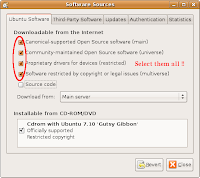
First thing you have to do is to navigate in the Gnome panel to "System -> Administration -> Software Sources" and enable all the additional repositories namely main (which should already be enabled), universe, restricted and multiverse. Truth be told, you need select only the multiverse repository but while you are at it, you might as well enable the rest of them too.

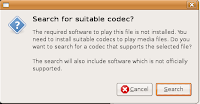
Once you have done that, navigate to your video or audio file and try playing it in Totem which is the default multimedia player for GNOME. When you open the media file in totem, it will notify you that it can't find the necessary codecs to play the file and will offer to search for and download the necessary files. It will then start downloading the missing pieces and install them. That is it. You have finished installing the codecs necessary to play your multimedia file.

Fig: Enable all additional repositories


Fig: Totem asks you whether it should search for the necessary codecs to play the media.


Fig: Totem searching for required multimedia codec packages


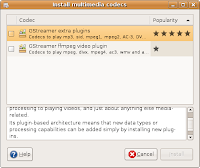
Fig: It provides a list of packages which contain the required files


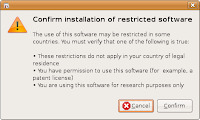
Fig: Asks for confirmation.


Fig: Totem playing the movie after it finished installing the required codecs.

As a side note, I have found that this is the same process that is followed by the Windows media player when it can't find the necessary codecs. But there is a significant difference though, in Ubuntu Gutsy Gibbon, this process works flawlessly where as in Windows, it gives an error ;-).

Alternately, if you do not want to go through the above process (though I wonder why), you can also install all the multimedia codecs by firing up a terminal and running the apt-get command as follows :

$ sudo apt-get install gstreamer0.10-plugins-bad gstreamer0.10-ffmpeg gstreamer0.10-fluendo-mp3 gstreamer0.10-plugins-ugly
You must be wondering, if there are bad and ugly gstreamer plugins there should be the good ones too right ? Well the good gstreamer plugins are installed by default on your Ubuntu machine and so you need not install them manually.

Finally, for the brave at heart, you can also install the multimedia codecs manually as explained in this article.

A problem encountered by laptop users running Ubuntu Gutsy Gibbon and a possible solution

A number of people are blogging about how running the latest version of Ubuntu Gutsy Gibbon on a laptop could possibly end up causing an early demise of the laptop hard disk. The problem is that the hard disk essentially consists of a spindle and a bunch of disks stacked one on top of the other which rotate at high speeds. Now as with all objects which have moving parts, hard disk also faces wear and tear. The problem faced by Ubuntu laptop users is the aggressive use of hard disk by Ubuntu thus shortening the life of the hard disk.

A bug submitted at launchpad confirms this anomaly. So what is the solution to this rather irritating problem ?

Use hdparm; a command line tool to disable advanced power management (APM). This is achieved by running the following command :
$ sudo hdparm -B 255 /dev/sda
Here the -B option is used to set the APM value. A low value means aggressive power management (that translates to more wear and tear for your hard disk) and a high value means better performance (but more battery consumption). By setting the value as 255, we have disabled the APM all together. Over 2 years back, I had written an article explaining how to improve your hard disk performance using hdparm. And if you are interested in knowing more about hdparm, you may read the article.

I run Ubuntu Gutsy Gibbon and it doesn't cause this problem on my desktop PC.

Check out the opinions from two sources [ linux hero and Planet Beranger ] to get a different angle.

A guide to Ubuntu customization

Would you like to customize your Ubuntu to look like Windows Vista ? Or may be you are more of an Apple fan boy with not enough moolah to buy yourselves a Mac. Either way, there is hope around the horizon. The beauty of Linux is that it is so customizable, you can make it look and feel like any other operating system.

Fig: Ubuntu in Windows Vista theme

If you are by any chance running Ubuntu and wish to customize it to your hearts content, then head over to tuxenclave which features a detailed Ubuntu customization guide. Besides that also take a look at how you can transform KDE to look like MacOSX.

Steps to install gOS on Ubuntu Gutsy Gibbon

I am sure by now you have heard of the gPC loaded with gOS via various news sources. For those in the dark, gPC stands for green PC which is a sub $200 PC which comes loaded with a customized version of Ubuntu known as gOS or in popular parlance called Google OS.

If you look carefully, you will find that gOS is a customized version of Enlightenment desktop and contain links to popular online services like the Google docs, Gmail, Facebook, Blogger and so on. All that a user of gOS has to do to access these online applications is, ensure his machine is connected to the Internet and double click on the respective icons. Of course apart from these online services, gOS also contain almost all applications that are standard fare in any Linux distribution.

Here is the interesting part... it is possible to install gOS on your Ubuntu Gutsy Gibbon Linux machine by following a couple of simple steps. In other words you can install the heavily customized enlightenment window manager which is the base of the gOS using the following steps...

Fig: gOS desktop running in Ubuntu Gutsy Gibbon

Fig: About gOS dialog box

First open up your /etc/apt/sources.list file which lists all the repositories and append the following two lines to it.
$ sudo vi /etc/apt/sources.list
# FILE: /etc/apt/sources.list
...
# Adding gOS repositories
deb http://packages.thinkgos.com/gos/ painful main
deb-src http://packages.thinkgos.com/gos/ painful main
In the terminal enter the command to import the public key of the repository so that the signatures could be verified as follows :
# wget http://www.thinkgos.com/files/gos_repo_key.asc
# sudo apt-key add gos_repo_key.asc
Next update your apt cache database using the command :
$ sudo apt-get update
To install the necessary files which will allow you to run gOS on Ubuntu, run the following apt-get command :
$ sudo apt-get install greenos-desktop
I already had enlightenment (e17) window manager (WM) installed on my Ubuntu machine so it was a mere 11 MB download for me. If you do not have enlightenment WM, then apt-get will have to download and install that too which could hike your download size by around 35 MB.

Once installed, you can select gOS/Enlightenment from sessions option in your login screen.

Fig: gOS module settings dialog box

It is worth noting that the gOS that is thus installed is devoid of the Google branding namely the desktop icons to Google services; which are conspicuous in their absence. So the name gOS in this case could be a misnomer.

Having used gOS for some time now, I am sufficiently impressed on the color and theme preferences. While I found the default theme of Enlightenment not that good, I find the gOS theme quite elegant and pleasing to the eyes. At the same time you also get all the features that are available in Enlightenment which includes transparency, shadows, animation on the desktop and many usability features which can make your desktop experience all the more comfortable and productive.

Tuesday, May 13, 2008

Install Avant Window Navigator (AWN) in Ubuntu Linux

AWN - short for Avant Window Navigator is a dock like bar which sits at the bottom of the screen. It provides similar effects as the Dock in Mac OSX Leopard. The AWN project consists of three main parts namely
  1. The Dock
  2. AWN window navigator and
  3. The shared library 'libawn' which is used to develop applets which enhance the functionality of AWN. The applets can be coded in either 'C' or 'Python' language.
Pre-requisites for installing AWN
To install AWN on your Linux machine, it has to meet certain conditions. Them being -
  • Xgl or AIGLX installed - in short your computer should be capable of compositing support. This mostly means if you have an Nvidia or ATI video card, you should download and install the proprietary drivers.
  • A compositing manager installed. A few examples of compositing managers are Beryl/Compiz/Compiz Fusion, Cairo, Xfce, Metacity, xcompmgr and so on.
    In Ubuntu you can enable compositing manager by clicking System>Preferences> Appearance and then enabling Visual effects from the 'Visual Effects' tab in the Appearance dialog.

Ubuntu Appearance dialogFig: Enable Visual effects

Installation
In Ubuntu Gutsy Gibbon, the installation of AWN is a two step process. First you have to enable the backports repository which contain the necessary binaries of avant window navigator and related files.

This is done by clicking System>Administration>Software sources on the GNOME panel.

Fig: Click on the Software Sources Menu

It opens the "Software sources" dialog box.

In that click the 'Updates' tab and enable the gutsy-backports option as shown in the figure below :

Fig: Enable gutsy-backports in the Updates tab

Next fire up a terminal and update and install the AWN packages as follows :
$ sudo apt-get update
$ sudo apt-get install avant-window-navigator awn-manager
awn-manager is a GUI tool which allows you to make changes to the look and feel of the AWN dock as well as install and manage applets and themes.

Fig: Avant Window Navigator close-up view

Now that you have installed Avant Window Manager, it is time to take it for a test drive. To start AWN, click GNOME menu Applications>Accessories>Avant Window Navigator.

Fig: Avant Window Manager menu

Fig: Ubuntu Gutsy Gibbon desktop running AWN
A few AWN tips
  • To add applications to the AWN dock, just drag and drop icons from the Applications menu or from Nautilus (/usr/share/applications).
  • You can right click on the AWN dock and select properties to open the 'Avant Window Manager' dialog where you can change the look and feel of the dock and add additional applets.
Conclusion
Finally we Linux users have our very own dock similar to the dock seen in Mac OSX Leopard. While the AWN project is still a work in progress, there are a lot of applets available from the ubiquitous clock to the GMail checker which brings visual joy to the user's desktop. To know about these applets, read the following article.

Cool Awn Applets to adorn your Ubuntu Linux Desktop

In the previous article, I explained how to install Avant Window Navigator in Ubuntu Linux (Gutsy Gibbon). By default, it doesn't install any applets. But a dock without any applets is as boring as a desktop without a dock right ?

So here are a couple of AWN applets which I found really interesting. But first the installation ...

Installation of Awn applets
To install these applets you have to enable an additional repository from reacocard. For that open the /etc/apt/sources.list file in your favorite editor and append the following line to it.
#FILE: /etc/apt/sources.list
deb http://ppa.launchpad.net/reacocard-awn/ubuntu gutsy main
Now update the repository and install the following package. NOTE: It is assumed that you have already installed the Avant Window Navigator.
$ sudo apt-get update
$ sudo apt-get install awn-core-applets-bzr
That is it. Now you can find all the applets in the awn manager which is accessed from GNOME Menu System>Preferences>Awn manager .

Fig: Awn manager GNOME menu

To run an applet, open the "Awn manager" dialog box and in its left pane, click the "Applets" icon. In the right pane, you will find all the applets installed on your system. Select an applet and click the "Activate button". The applet starts running on your Awn dock.

Fig: Awn manager GUI

A few cool AWN applets
Here are a couple of very nice applets which caught my fancy.

Dilbert Cartoon Applet - This applet displays comic strips of popular cartoon characters. At present you have a choice of 5 different strips namely - Dilbert, Peanuts, The born loser, Wizard of ID and Xkcd.com.
Fig: Dilbert applet displaying a comic strip

Main menu applet - This applet provides an alternate menu containing all the applications you will find in the menus on the GNOME panel.

Fig: Main menu applet - I find it more functional

Stack applet - I like this applet very much. It has three layouts namely "Default dialog", "Curved GUI" and "Trasher GUI". The "Trasher GUI" is the same as the "Default dialog" with the exception that in the former, there is a delete button embedded. The "Curved GUI" is what has picked my fancy and makes me think of the dock found in Mac OSX Leopard.

Fig: Click on the stack applet to open a stack of objects.

Terminal applet - What better way to use the dock than embedding a terminal into an applet ? The terminal supports transparency which makes it ultra cool. And you can even choose the terminal you want to embed such as gnome-terminal, konsole, xfce terminal, xterm and so on.

Fig: gnome-terminal embedded in the terminal applet

Weather applet - Would you like to know the weather forecasts for today ? Even better how about the predictions for the next 4 days? Well, you have got your wish in the Weather applet. This applet pulls relevant data from the weather.com website and displays it in a nice pictorial view on your desktop. I was really surprised to find my city covered. Also the weather predictions seem pretty accurate.

Fig: I am always interested in the weather :-)

Fig: The weather map of India
AddThis Social Bookmark Button

Voice your Opinion and suggestions on Ubuntu Linux

If you are an Ubuntu user, you might have come across situations where you wish a particular functionality was present in Ubuntu. Well, look no further because the official Ubuntu site is conducting a brainstorming session in which anybody can participate.

First create an account at Ubuntu Brainstorm website and then submit your wish. Other visitors to the site will read what you submit and vote on it. If your wish receives sufficient number of votes to deem it popular, then it will have a very good chance of getting integrated in the next release of Ubuntu.

Some of most popular ideas that were submitted are as follows :
  • Fix suspend and hibernate.
  • Provide a simple graphical interface to manage _any_ type of network connection
  • Better power management
  • Clean up Preferences and Administration Menu
  • Start taking advantage of Upstart to speed up the booting of Ubuntu to a full desktop
  • Easy mounting of Images like ISO and CUE
  • Create a better hardware databasea

Introducing Ubuntu Live stats

If you are a hard core Ubuntu geek, you must have wondered at some point of time how to keep track of all the news related to Ubuntu such as security fixes, launchpad bugs, forum topics and of course latest news related to Ubuntu.

Now you can by visiting the Ubuntu live stats website which is an ajaxified site which gets constantly updated bringing you everything related to Ubuntu. It scours numerous official sites of Ubuntu to bring the latest tidbits related to Ubuntu.

A must visit site if you are an avid Ubuntu user.
[Via tectonic]

Ubuntu Hardy Heron - 8.04 LTS Desktop and Server Edition Released

The next major release of Ubuntu has taken place. The new name being Hardy Heron. It is released as a Long Term Support (LTS) version. Ubuntu 8.04 LTS Desktop edition is supported till year 2011 (3 year support) and the server version is supported till 2013 (5 year support).

Some of the features that will be big draw for any Linux enthusiast are as follows :
  • Wubi Windows Installer - This allows any Windows user to install Ubuntu on their hard disk without any partitioning what so ever and run it from a folder in the 'C:\' drive. It allows you to install and uninstall Ubuntu as any other Windows application, in a simple and safe way.
  • Enhanced security via SELinux
  • Integration with Microsoft Active Directory
  • Support for KVM out of the box. KVM, or kernel-based virtual machine, is a device driver and userspace component for Linux that utilizes hardware virtualization extensions such as Intel's VT to create virtual machines running on a Linux host.
You can read the main features of the Desktop edition of Ubuntu Hardy Heron here.

If you are as excited as I am in this new release, then choose a mirror close to your geographic location and start downloading this excellent Linux distribution. On the other hand, if you already have Ubuntu installed, you can also upgrade following the steps detailed here.