Showing posts with label system administration. Show all posts

Friday, July 11, 2008

What does /etc stands for in Linux/Unix ?

There is a discussion going on over at Slashdot regarding what /etc in Linux/Unix stands for. Is it an acronym or does it stand for 'et cetera' ? While the opinion is divided, the overwhelming thought is that it stands for et cetera. That is, what ever data which doesn't belong to other directories are put into /etc. Such as the 'motd' file (which stands for "Message Of The Day"). Many of us also look at /etc as a placeholder for the configuration files of programs which we run on our system.

If you look at the Linux file hierarchy, you find the following :
  • /bin - common binaries
  • /sbin - Binaries used for system administration are placed here.
  • /boot - static files of the boot loader. Usually it contain the Linux kernel, Grub boot loader files and so on.
  • /dev - device files such as your CD drive, hard disk, and any other physical device. (In Linux/Unix, the common premise is that everything is a file).
  • /home - user home directories are found here. In unices like FreeBSD, the home directories are found in /usr/home. And in Solaris it is in /export. So quite a big difference here.
  • /lib - Essential shared libraries and kernel modules
  • /mnt - temporary mount point useful for when you insert your USB stick and it gets mounted under /mnt. Though in Ubuntu and the likes, it is usually mounted under /media.
  • /var - variable data, such as logs, news, mail spool files and so on which is constantly being modified by various programs running on your system.
  • /tmp - temporary files are placed here by default.
  • /usr - the secondary hierarchy which contain its own bin and sbin sub-directories.
  • /etc - Usually contain the configuration files for all the programs that run on your Linux/Unix system.
  • /opt - Third party application packages which does not conform to the standard Linux file hierarchy can be installed here.
  • /srv - Contains data for services provided by the system.
And of course there is the /proc directory which does not actually reside on the disk.

The file system hierarchy standard [FSHS] explains /etc as follows :
The /etc hierarchy contains configuration files. A "configuration file" is a local file used to control the operation of a program; it must be static and cannot be an executable binary.
It further goes on to say :
No binaries may be located under '/etc'. And the following directories, or symbolic links to directories are required in /etc:

opt Configuration for /opt
X11 Configuration for the X Window system (optional)
sgml Configuration for SGML (optional)
xml Configuration for XML (optional)
While this is the long and short of the matter, some believe that '/etc' is indeed an acronym and stands for "Editable Text Configuration". Oh well, the media is still not out with the verdict.

Steps to manually mount a USB flash drive in GNU/Linux

I recently got hold of a 1 GB USB memory stick. It is a Kingmax 1 GB flash drive (U201G - U2GMHDWG) which is (believe it or not), half the size of my little finger. In fact, it is so small that there is a good chance I might misplace it somewhere if it was not tethered to a chain. Anyway, the USB stick has a FAT partition on it and contain some data which I wanted to access in GNU/Linux. I was using Ubuntu and it straight away detected the device as soon as I inserted it and it was automatically mounted in the /media/USB DISK location.

Kingmax 1 GB USB flash driveFig: The tiny 1 GB USB flash drive from Kingmax

But when I tried to mount it in a bare bones Linux distribution (a distribution which has just enough software as is needed), it was not mounted automatically. This is because the auto mounting takes place by means of a program known as hotplug which detects the USB device that is inserted in real time and then mounts it in the desired location.

So is it possible to mount a USB device (in my case the USB stick) manually ? Yes, it is possible. The idea is that the USB ports are detected by GNU/Linux as /dev/sdax - where 'x' in sdax stands for the number of the USB port. And once the USB device is connected to the USB port of your machine, you have to mount it manually.

These are the steps I followed to successfully mount the USB memory stick on my bare bones Debian Etch machine.
  1. Insert the USB stick into the USB port. My machine has 4 USB ports, 3 in the back and one at front. It doesn't matter which port you insert the device. The first USB port you use will be assigned the name /dev/sda1, the next port /dev/sda2 and so on.
  2. Check if the USB device is detected by GNU/Linux by running the following command:
    # lsusb
    Bus 002 Device 007: ID 0457:0151 Silicon Integrated Systems Corp. Super Flash 1GB Flash Drive
    Bus 002 Device 002: ID 8086:1120 Intel Corp.
    Bus 002 Device 001: ID 0000:0000
    Bus 001 Device 001: ID 0000:0000
    The first line in the output of the above command shows that the memory stick has been detected as Super Flash 1 GB Flash drive.
  3. Mount the device in the desired location. I chose to mount it in the /mnt/usbstick directory.
    # mount -t vfat -o rw,nosuid,nodev,quiet,shortname=mixed,uid=1001,gid=100,umask=077,iocharset=utf8 /dev/sda1 /mnt/usbstick
As an aside, you can do away with a lot of mount options such as nosuid, nodev and so on. The uid is necessary and is my user id number which allows me to access the device without being logged in as root. And if you are not sure of the partition on your usb stick, you can also use auto instead of vfat.

Update (19th March 2007): I forgot to mention one thing. The 'lsusb' command is used to find out if your USB device has indeed been detected by GNU/Linux kernel. If it is not detected by any chance because of non-availability of Linux drivers for your device, the command will not output the specific information. Once you are sure that the device has been detected, you can use the fdisk command to list the device(s) as follows :
# fdisk -l
which will list all the devices including the USB devices detected by GNU/Linux. Then you can use the mount command to mount it at a specific location.

Bash FAQ - Frequently Asked Questions

I was once motivated enough to write a guide on Bash scripting which I chose to call "The 10 Seconds Guide to Bash Scripting" which, if missed, you can read here. Even though many of you may challenge me on the time I claim is enough to read through the guide, I am sure you will find it useful.

Today I came across a collection of tips that are compiled into an FAQ which explain many questions related to Bash scripting. Considering that Bash shell is the default shell for all GNU/Linux distributions and it being bundled with other Unix OSes, it has in my opinion gained more credibility than the erstwhile Bourne shell (which btw is still the default shell for Solaris). The FAQ is maintained by a person named Greg and can be accessed here. There are altogether 75 questions followed by their answers. Aside from being informative, many of them are interesting as well.

While we are on the topic of Bash shell, you may also be interested in reading a list of the common Bash shell keyboard shortcuts.

Tuesday, June 17, 2008

Unix Processes - What constitute a Process ?

A process is a fundamental part of any operating system - irrespective of whether they are proprietary or Free. And all Operating systems usually have a lot of processes running at any given time. This begs the question, what exactly is a process ?

A process can be considered to be a container, bundling a running application, its environment variables, the state of the application's input and output, and the state of the process, including its priority and accumulated resource usage. In short, every single application that you run on your machine will have its own unique process allocated to it for the duration of the time it runs.

In Unix based OSes, each of that unique process has a parent process from which it is forked (cloned, spawned) initially. The very first process that is created by the OS when you turn on the machine is init process. This process will always have a process id of 1. All processes are ultimately descended from the one process called init. Try running the ps command to find the process id of init.
$ ps axj
PPID PID PGID SID TTY TPGID STAT UID TIME COMMAND
0 1 0 0 ? -1 S 0 0:04 init [4]
Martin Streicher has written an enlightening article throwing more light on the concept of a Unix process. He explains the semantics of a process, some very useful commands which give information about the running processes as well as talks about forks and daemons (a special kind of process which continuously runs in the background waiting for some application to connect to it).

Saturday, June 7, 2008

Managing disk space with LVM

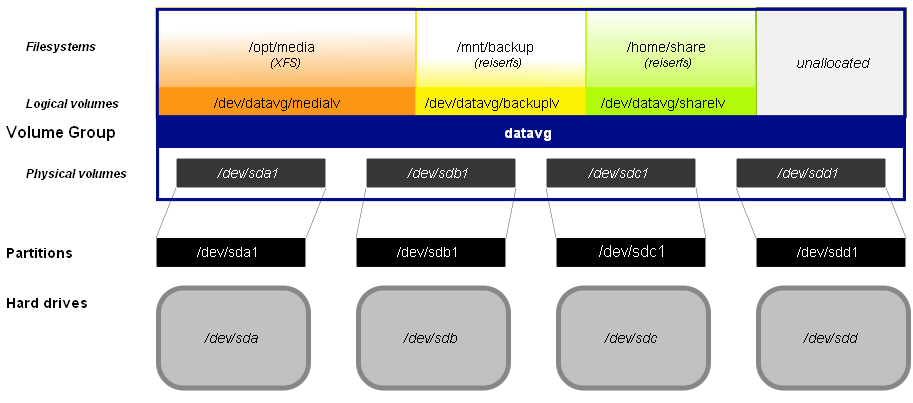
Now a days, when one installs Linux on ones machine, in more cases than one, there is a trend to create a logical volume and create the file system on this volume rather than creating the file system in individual partitions. I have myself created logical volumes on one of my machines running Linux.

Logical volumes have their own advantages in that one can grow or shrink a volume without any loss of data. And that makes it much more flexible than creating file systems directly in partitions. Another advantage is that one can bundle multiple hard disks together to create a single logical volume such that the operating system sees only one volume even as the data resides across multiple physical hard disks. In a previous post titled "Resizing Logical Volumes", I had briefly put down my experiences in create logical volumes in Fedora Linux.

Now Bryce Harrington and Kees Cook have come together to write this very informative article titled 'Managing Disk Space with LVM' which clearly explains the ins and outs of creating, modifying and deleting logical volumes in Linux which makes an interesting read.

Usually, logical volumes are more desirable where there is a constant flux in the amount of data in storage devices such as a machine running as a file server or a database server and so on. But even home users could benefit from creating logical volumes if they are in the habit of saving lots of data on their hard disk like games, movie clips,songs... and see their disk space shrinking at a fast pace.And if the hard disk fills up, the procedure is as simple as attaching a second hard disk and then extending the logical volume on the first hard disk to include the new one. But if you go the LVM way for your desktop, just make sure that the /boot directory resides in a physical partition of its own instead of the logical volume as boot loaders like GRUB and LILO don't support LVM yet.

Managing disk space with LVM

Now a days, when one installs Linux on ones machine, in more cases than one, there is a trend to create a logical volume and create the file system on this volume rather than creating the file system in individual partitions. I have myself created logical volumes on one of my machines running Linux.

Logical volumes have their own advantages in that one can grow or shrink a volume without any loss of data. And that makes it much more flexible than creating file systems directly in partitions. Another advantage is that one can bundle multiple hard disks together to create a single logical volume such that the operating system sees only one volume even as the data resides across multiple physical hard disks. In a previous post titled "Resizing Logical Volumes", I had briefly put down my experiences in create logical volumes in Fedora Linux.

Now Bryce Harrington and Kees Cook have come together to write this very informative article titled 'Managing Disk Space with LVM' which clearly explains the ins and outs of creating, modifying and deleting logical volumes in Linux which makes an interesting read.

Usually, logical volumes are more desirable where there is a constant flux in the amount of data in storage devices such as a machine running as a file server or a database server and so on. But even home users could benefit from creating logical volumes if they are in the habit of saving lots of data on their hard disk like games, movie clips,songs... and see their disk space shrinking at a fast pace.And if the hard disk fills up, the procedure is as simple as attaching a second hard disk and then extending the logical volume on the first hard disk to include the new one. But if you go the LVM way for your desktop, just make sure that the /boot directory resides in a physical partition of its own instead of the logical volume as boot loaders like GRUB and LILO don't support LVM yet.

Tuesday, June 3, 2008

Tweak your host file to block ad generating web sites

Here is a cool tip to block ad generating websites from serving ads while you are browsing the web. The idea is to direct all the domains pointing to the ad serving sites to your localhost aka 127.0.0.1 . Now, the next time you visit a website and the website is serving an ad from a domain which you have directed to your localhost, you will see a blank space at the position where the ad was to be served.

This is done by inserting lines in your host file (/etc/hosts) on your Linux machine which are in the following format one domain per line :

FILE: /etc/hosts
127.0.0.1 localhost
127.0.0.1 ad.doubleclick.net
127.0.0.1 xx.adserver.xxx
...
... and so on.

One thing worth noting is that once you have collected (almost) all the ad serving sites domains, the resulting host file will be really huge as there are an ever growing collection of companies which make a living serving ads on publishing sites. More over, after some time it gets a bit tedious to update the /etc/hosts file on a regular basis.

LittleUbuntu has a nice writeup about implementing this feature in Ubuntu as well as a link to the original article.

Tuesday, May 13, 2008

Linux file system hierarchy - the fun easy way

I have been asked by many people to explain the file system hierarchy in Linux because they find the file system in Linux quite different from what they are used to in Windows. To put it simply, it can be visualized as a tree with its roots and all. At the top of the hierarchy is invariably the root path which is represented by '/'. All other directories are created beneath this root path. And each of the sub directories have a specific purpose. For example, '/etc' contain the configuration files, the '/opt' directory is used to install third party software, '/boot' contain the grub files and the Linux kernel and so on.

Today I came across this very beautiful image which explains the Linux file system in lucid detail at linuxconfig.org.

Fig: Linux file system hierarchy

Guide to adding a new partition or drive to an existing system

Suppose you are required to create a 10 GB partition on your server running Linux, you have got two options namely :
  • Create a partition from the unpartitioned space on your machine or
  • Add a new drive.
If you are opting for the latter then it is a simple thing of plugging in the new drive, letting the system detect it, using a partitioning tool to create the requisite partition, formating the newly created partition and finally mounting it. But if it is the former namely, creating a partition from unpartitioned space, then the task gets a bit trickier.

Joey Prestia explains the exact steps needed to add a new partition to an existing system. The task can be broken down into the following steps :
  1. Determine what partitions need to be created and where.
  2. Create the partitions (I use 'fdisk' here but any Linux disk partitioning tool should work)
  3. Re-read the partition table either with 'partprobe' or by a reboot
  4. Make a filesystem on the partition, label it, and create the necessary mount points
  5. Add the appropriate entries to '/etc/fstab' so the partitions are mounted upon reboot
Check out Joey's notes to know the exact commands used to accomplish the above tasks.

Guide to adding a new partition or drive to an existing system

Suppose you are required to create a 10 GB partition on your server running Linux, you have got two options namely :
  • Create a partition from the unpartitioned space on your machine or
  • Add a new drive.
If you are opting for the latter then it is a simple thing of plugging in the new drive, letting the system detect it, using a partitioning tool to create the requisite partition, formating the newly created partition and finally mounting it. But if it is the former namely, creating a partition from unpartitioned space, then the task gets a bit trickier.

Joey Prestia explains the exact steps needed to add a new partition to an existing system. The task can be broken down into the following steps :
  1. Determine what partitions need to be created and where.
  2. Create the partitions (I use 'fdisk' here but any Linux disk partitioning tool should work)
  3. Re-read the partition table either with 'partprobe' or by a reboot
  4. Make a filesystem on the partition, label it, and create the necessary mount points
  5. Add the appropriate entries to '/etc/fstab' so the partitions are mounted upon reboot
Check out Joey's notes to know the exact commands used to accomplish the above tasks.